
Lyrics Catcher
Finds lyrics for the songs in a folder and writes them into your music files.
Download Source codeFree and open source (GPL v3). Windows, macOS and Linux.
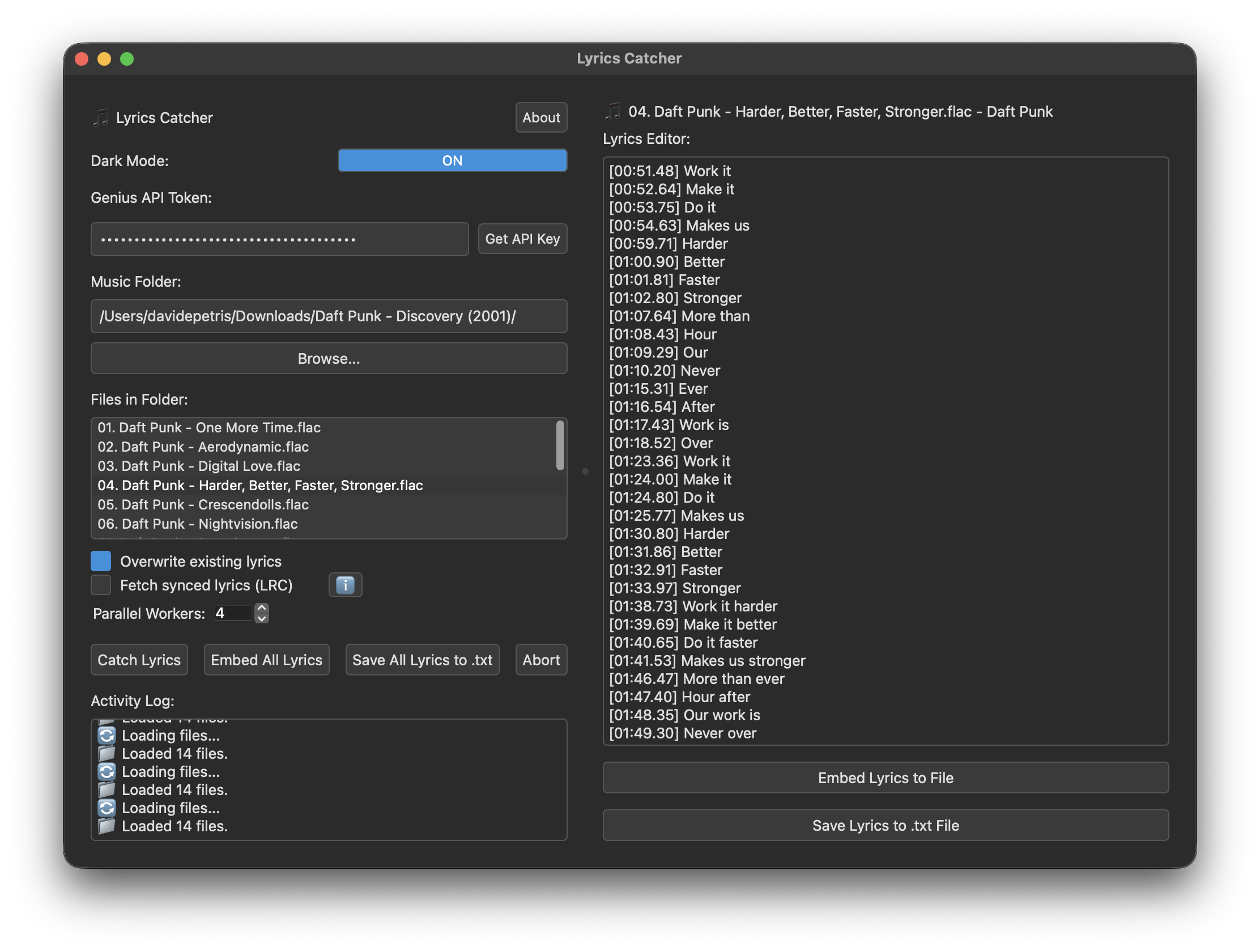
Lyrics inside the files
Lyrics are written into the tags of your mp3, flac, m4a, mp4, ogg, opus and alac files, so any player that reads them can show them. You can also save them as .txt or .lrc files next to the songs.
Synced lyrics
Turn on the LRC option to get timestamped lyrics from LRCLIB. If a song doesn't have any, the app falls back to plain lyrics from Genius.
You check before it saves
Every result opens in an editor. Fix a line or a section label, then save one song or the whole folder. Nothing is written to your files until you press save.
How to use it
- Get a free API token from genius.com/api-clients and paste it into the app. It is not saved, so you paste it again next time.
- Drop your music folder onto the window, or press Browse.
- Press Catch Lyrics. Click a song in the list to read or edit what was found.
- Press Embed Lyrics to File, or save as .txt (.lrc for synced lyrics). The "All" buttons do the whole folder.
Songs need artist and title tags to be found. Lyrics from Genius that aren't detected as English are skipped, so songs in other languages won't get plain lyrics. Songs that already have lyrics are left alone unless you tick "Overwrite existing lyrics".
Where the lyrics go
| Format | Extension | Tag |
|---|---|---|
| MP3 | .mp3 | USLT (plain), SYLT (synced) |
| FLAC | .flac | LYRICS |
| OGG, OPUS | .ogg .opus | LYRICS |
| M4A, MP4, ALAC | .m4a .mp4 .alac | ©lyr |
Only MP3 gets a real synced tag. In the other formats, synced lyrics are stored as LRC text in the normal lyrics tag.
Download
Windows
A single .exe. No installer, just run it.
macOS
A .dmg. Drag the app to Applications.
Linux
An .AppImage. Make it executable and run it.
All versions and their change notes are on the releases page.
macOS says the app is damaged? The app isn't signed, so macOS blocks it. After dragging it to Applications, run this in Terminal and open it again:
xattr -cr "/Applications/Lyrics Catcher.app"